
Most PrestaShop stores handle form-related needs through a combination of separate tools. A contact page for enquiries, a third-party platform for surveys, and email threads for complaints. The data lands in three different places, and getting a complete picture of what customers are saying means checking all three every time.
A PrestaShop form creation and survey solution that brings all of this under one admin panel, like Knowband’s PrestaShop Form Studio, changes how consistently a store collects and acts on customer input. This post covers three practical use cases: registration forms, surveys, and complaint forms, and walks through how to build each one without any custom development.
Why PrestaShop Stores Need More Than a Default Contact Page
The built-in PrestaShop contact form captures a subject, message, and email address. That handles basic support enquiries and nothing beyond them. Anything more structured, such as an event registration form, a post-purchase satisfaction survey, or a product complaint form with file upload support, requires either a developer or an additional module.
According to a HubSpot study, companies that respond to customer complaints within an hour are seven times more likely to retain that customer long term. The gap is rarely about response time alone. A complaint form that collects the order number, product name, issue type, and supporting photos in a single submission gives the support team everything they need from the start, without chasing the customer for details.
The PrestaShop Online Form Builder Module covered here, Form Studio, manages registration, survey, and complaint forms from the same installation. Each form carries its own settings, placement rules, email routing, and submission log.
How to Build an Event or Customer Registration Form in PrestaShop
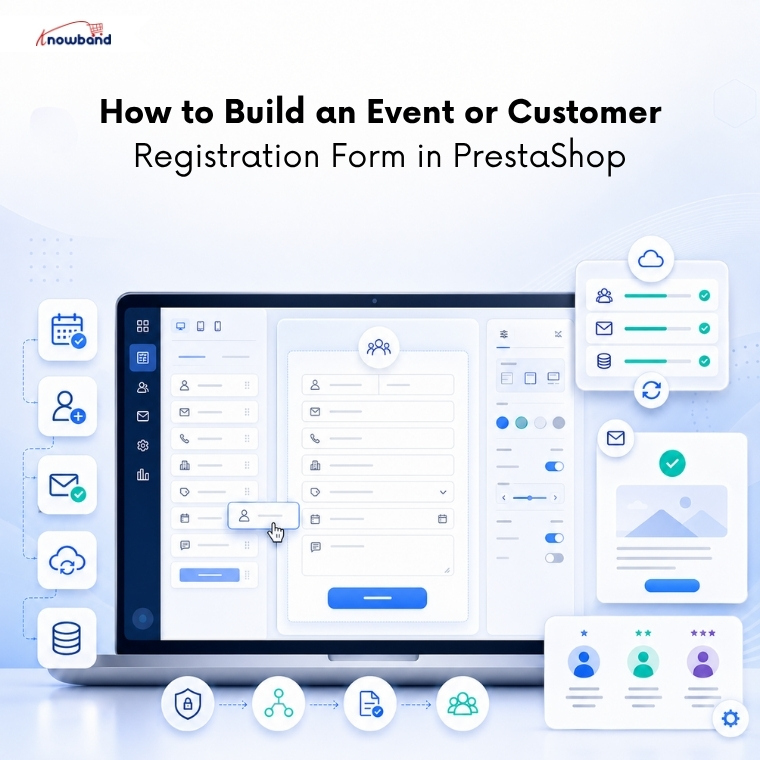
Registration forms for events, consultations, or programme sign-ups require structured fields that a standard account creation page does not provide. Session preference, dietary requirements, company name, or specific product interests all need dedicated inputs, and collecting them through a free-text contact form makes the data difficult to process at any volume.
To build a registration form using the PrestaShop Online Form Builder Module, open the Forms section and click Add New Form. Set a title for the form and enter a URL slug to create a dedicated page for it. In the Form tab, add the fields the registration requires: Text for full name, Email, Phone, Dropdown for session or category, Date for appointment or event preference, and Textarea for any notes the registrant wants to add.
In the Settings tab, the Customer Groups option controls which visitors can see the form. Tick Visitor and Guest for forms aimed at new contacts, or leave all groups selected to make it available to existing customers too. In the Mail tab, turn on the auto-responder so every submission triggers an immediate confirmation to the registrant. In the Synchronization tab, connect the form to Mailchimp or Brevo and map the email field so new registrants go straight into the correct list without any manual export.
Building a Post-Purchase Survey That Collects Actionable Scores
Post-purchase surveys work best when they appear shortly after the order is placed and ask only what is necessary. A four-question survey placed on the order confirmation screen consistently outperforms longer versions sent by email days later, as completion rates fall with both length and delay.
Build a new form in the PrestaShop Advanced Form Builder Addon with the following fields: a Radio button row for overall satisfaction rated 1 to 5, a Radio button row for delivery experience rated 1 to 5, a Dropdown for the product category purchased, and a Textarea for open comments. Add a Cloudflare Turnstile field at the bottom of the form to filter out automated submissions before they reach the inbox. Genuine customers pass through without seeing any challenge or puzzle.
In the Settings tab, set the Display Position to Checkout Page. This places the survey on the order confirmation screen, where the purchase is still fresh. Set the Customer Groups field to Customer so the form only appears for registered buyers who are logged in. In the Thank You Page tab, activate the post-submission page and write a short confirmation message that acknowledges the customer’s time rather than using a generic response.
Creating a Structured Complaint Form With File Upload Support
Complaint forms that only capture a text message generate more follow-up work than they save. When a customer reports a damaged product without a photo or flags a delivery problem without the order number, the support team cannot act until they have gathered the missing information. A well-built complaint form collects everything in the first submission.
In the PrestaShop Online Form Builder Module, build the complaint form with these fields: Text for full name, Email, a Dropdown for complaint type covering options such as Damaged Product, Wrong Item, Delivery Issue, Missing Part, and Other, Text for order number, Textarea for issue description, and a File field for photo or document uploads with accepted formats set to JPG, PNG, PDF, and ZIP and a size cap of 8 MB.
In the Mail tab, build the admin notification using dynamic field tags so the submission email arrives with the order number, complaint category, and written description already included. In the BCC field, add the email address of the department head responsible for that complaint type. This puts the right person in the loop on every submission without routing everything through a shared team inbox. Set the Reply-To field to the support team’s direct email address rather than the default admin account.
For placement, go to the Settings tab and select Product Page Footer under Display Positions. The form loads below the product description on every product page with no theme file edits required. Add the Home position as well to cover general complaints submitted outside a specific product page.
Managing Multilingual Forms Across Different Customer Segments
PrestaShop stores operating in more than one language need form fields, labels, confirmation messages, and email templates that function correctly in each language. Managing that across separate tools for each form type adds considerable overhead. A single module that handles it centrally removes that duplication.
The PrestaShop Form Creator supports multilingual inputs across every visible text element: form title, URL slug, field labels, validation messages, Thank You page content, and both the admin notification and auto-responder email bodies. Open the language tab in the editor, fill in the equivalent text for each active language on the store, and the form renders in whichever language the visitor is browsing in automatically.
Form submission management pulls all entries into one panel regardless of which language they were submitted in. Filter by form name, replied status, or submission content. Click any row to open the full submission and reply directly from the same screen. The reply form pre-fills From, To, and Subject fields from the original entry, so the thread stays connected.
The Spam and Blacklist Controls Worth Setting Up From Day One
Public-facing forms attract automated submissions. A registration or complaint form that goes live without spam protection will collect junk entries within days, particularly when the form triggers an auto-responder, since bots specifically target forms that send confirmation emails.
Cloudflare Turnstile blocks automated submissions silently, with no impact on the experience for real visitors. Enable it in General Settings, paste the Site Key and Secret Key from the Cloudflare dashboard, and drag the Turnstile field into individual form layouts from the field selector. The IP and Email Blacklist adds a second layer, allowing specific addresses, IP ranges, or entire domains to be blocked using wildcard patterns. Adding an entry such as *@qq.com or *@mail.ru shuts out every submission from those providers immediately.
Getting the PrestaShop Online Form Builder Module Running
Installation follows the standard PrestaShop process: upload the ZIP file via Module Manager, click Install, and open the configuration panel. The module is compatible with PrestaShop 1.7.x, 8.x, and 9.x.x, and requires PHP 7.2 or higher alongside a working SMTP email setup.
Knowband provides a full user manual covering every configuration tab, from multilingual form labels to the regex-based spam filter. The complete PrestaShop Advanced Form Builder Addon is on the Knowband product page, where you will also find the current compatibility information and version details.
For more such reads, you can visit:
![How to Add a Lead Generation Form to Your PrestaShop Product Pages Most eCommerce stores treat product pages as the final stop before checkout. The visitor either buys or leaves. That binary thinking is leaving a significant number of potential customers behind, specifically the ones who are interested but not ready, who have a question they cannot find the answer to, or who want to be contacted before committing. Adding a lead generation form for PrestaShop directly on a product page changes that equation. Instead of losing those visitors entirely, you give them a way to raise their hand. A name, an email, sometimes a specific question, and you have something to work with. This is not complicated to set up. Here is exactly how to do it. Why Product Pages Are the Right Place for Lead Capture Forms Product pages get the most qualified traffic on any eCommerce site. Someone browsing a specific product has already moved past the awareness stage; they are evaluating. Product page conversion rates for items over $200 sit between 1-2%. For higher-ticket items, the gap between interest and purchase is wide. That gap is where a lead form sits. A visitor who cannot find a size, wants to ask about bulk pricing, or needs to know about compatibility before buying is not a lost sale; they are a customer enquiry waiting to happen. A lead capture form on the product page makes that conversation possible without the visitor having to hunt for a contact page. The form placement matters. Forms embedded in the product page footer or below the product images see higher engagement than generic contact pages because the context is already there, and the visitor is looking at the product when they fill in the form. What the PrestaShop Form Builder Actually Does on a Product Page The PrestaShop Form Builder lets you create any type of form, contact, enquiry, lead capture, quote request, and place it on a specific product page or across all products, without editing any theme files. Forms are built using a drag-and-drop form builder interface. Add fields for name, email, phone, and a message. Set validation rules. Configure which fields are required. The whole thing runs from the admin panel, and the form goes live immediately after saving. Two things make this particularly useful for product page lead capture. First, the PrestaShop Lead Generation Form Builder lets you target placement precisely; you can show a form on specific products only, which means a custom enquiry form for your high-ticket items and nothing on your standard catalogue products. Second, every submission triggers an email notification to the admin, so no lead sits unread in a back-office list that nobody checks. How to Set Up a Lead Generation Form on a PrestaShop Product Page Here is the step-by-step process using the PrestaShop Form Builder. Step 1: Create the form Go to the module in your PrestaShop admin and click Add New Form. Give it a name that identifies the product or purpose, something like "Product Enquiry, High Ticket Items" keeps it clear when you have multiple forms running. Step 2: Add your fields Drag in the fields your lead form needs. For a basic product enquiry form: Name (text field), Email (email field), Phone (optional, phone field), Message (textarea). If you are collecting leads for a specific product line, add a dropdown for product interest. Keep it short; form simplicity directly affects completion rates. Three to four fields outperform six or seven every time. Step 3: Configure email notifications Under Mail Settings, set the admin email address where submissions go. Write a subject line that makes submissions easy to identify in your inbox. "New Product Enquiry via [Form Name]" works. The PrestaShop Survey Module also lets you set up an auto-responder so the customer receives a confirmation immediately after submitting, which sets expectations and reduces follow-up messages. Step 4: Enable spam protection Toggle Cloudflare Turnstile on. This runs bot filtering silently in the background; genuine customers do not see any CAPTCHA challenge. Every submission that reaches your inbox is from a real person. For product pages with high traffic, this matters more than merchants usually anticipate before they experience the volume of bot submissions an unprotected form attracts. Step 5: Set the placement This is where the product page targeting happens. In the Appearance settings, set the display position to Product Page, Footer or Product Page, Below Product Images. If you only want the form on specific products, use the conditional display options to restrict it. Apply it to all products if the form is a general product enquiry form. Step 6: Go live Toggle the form to enable and save. The form appears on the relevant product pages immediately. No theme edits. No developer. Making the Form Work Harder After Setup Placement and fields are the basics. A few additional configurations turn a passive lead form into an active sales tool. Connect to Mailchimp or Brevo. The PrestaShop Online Form Builder Module integrates with both. Mailchimp integration means anyone who submits the form gets added to your chosen list automatically. This means every product enquiry becomes an entry point into your email nurture sequence, useful for high-ticket products with longer consideration cycles. Use conditional logic for complex products. If your product comes in multiple variants or configurations, conditional logic lets you show different questions based on what the customer selects earlier in the form. A visitor selecting "Commercial Use" sees different follow-up fields than one selecting "Personal Use." This keeps the form short for most customers while capturing more relevant details from those who need it. Review submissions in the back office. Every submission is logged in the PrestaShop admin panel alongside the form it came from and the date it was submitted. The PrestaShop Survey Module keeps all submission data in one place, filters by form, exports responses, and tracks which product pages are generating the most enquiries. This data tells you which products have the highest interest-to-purchase friction, useful information for product page copy and pricing decisions. The Outcome This Setup Produces A lead generation form on a product page does one specific thing well: it captures the interest of visitors who would otherwise leave without a trace. The visitor who had a question about your product but could not find the answer is now a contact. The B2B buyer researching bulk pricing is now in your inbox. The customer who was not ready to buy today but wanted to know about availability next month is now on your list. None of that happens if the only call to action on the product page is an Add to Cart button. The PrestaShop Online Form Builder Module by Knowband handles the full cycle, form creation, product page placement, submission management, and email marketing integration from one place. No code, no external tools, no developer time. The PrestaShop Form Builder is built for merchants who want to act on visitor interest before it disappears.](https://www.prestamarketplace.com/wp-content/uploads/2026/05/How-to-Add-a-Lead-Generation-Form-to-Your-PrestaShop-Product-Pages-1-75x75.png)

