
An agency managing six PrestaShop stores for different clients doesn’t have the luxury of updating each catalog by hand. One store needs a supplier feed synced daily, another needs a full product migration before a rebrand launches, and a third just needs prices refreshed before a weekend sale. Doing all three manually, across six admin panels, is way too time-consuming.
This is the exact scenario where a PrestaShop catalog import export solution, such as Knowband’s, earns its place. A proper catalog import export solution for PrestaShop turns six separate manual jobs into six saved configurations that run themselves.
Why Multi-Store Product Catalog Management Becomes Difficult at Scale
PrestaShop’s native importer works fine for a one-time upload of a few hundred rows. It starts to strain the moment a merchant needs to repeat that same import weekly, push it to more than one store, or handle product combinations and multiple languages in the same file.
Agencies feel this first, since they’re rebuilding the same workflow across every client store they manage. A merchant running a single shop feels it slightly later, usually the first time a supplier sends a price update file, and the admin realizes there’s no repeatable process for applying it.
What PrestaShop Catalog Import Export Actually Solves
The underlying problem isn’t the file format. CSV, XLSX, JSON, and XML all carry the same data; the problem is that most import solutions treat every transfer as a one-time task instead of a repeatable process.
PrestaShop catalog import export done properly means saving the column mapping, the file format, and the destination once, as a reusable profile, rather than reconfiguring the same fields every time a file needs to be moved. That distinction is what separates a basic upload button from an actual data management system.
Knowband takes exactly this approach with its Product Import Export Scheduler Pro, built as a full Prestashop Bulk Product Import Export Module rather than a single-purpose CSV uploader. Products, categories, combinations, and multilingual fields all move through the same profile system, in either direction, without a developer touching code.
Moving Products Between Stores Without Losing Data
Store migration is where generic import solutions tend to fail quietly. Product combinations get flattened into a single row, translated fields collapse into one default language, and category structures don’t map cleanly between the source and destination store.
A PrestaShop Automated Catalog Manager built for this handles combinations as linked rows rather than merging them, so options and variants survive the round trip from export to re-import. Missing attribute groups or values on the destination store get created automatically instead of causing the row to fail outright, which matters when the target store wasn’t cloned from the source.
Multilingual catalogs get the same treatment. Selecting specific store languages during export keeps translated name and description fields intact per language, rather than defaulting everything to one locale on the way out.
Step-by-Step: Setting Up a PrestaShop Automated Catalog Manager Profile
A transfer profile is a saved configuration, file format, column mapping, and destination that runs the same way every time without manual reconfiguration. Setting one up follows a consistent sequence regardless of whether it’s an import or an export:
- Choose the data type (Products or Categories) and file format.
- Select which store languages to include, and enable product combinations if variants matter.
- Set the destination, local download, or FTP/SFTP for automated delivery, and test the connection before saving.
- Map each column to the correct PrestaShop field, letting auto-matching handle the obvious ones.
- Save the profile and either run it manually or enable the cron schedule.
Once saved, that profile is reusable indefinitely across every future sync for that store.
Keeping Multiple Stores in Sync With Scheduled Transfers
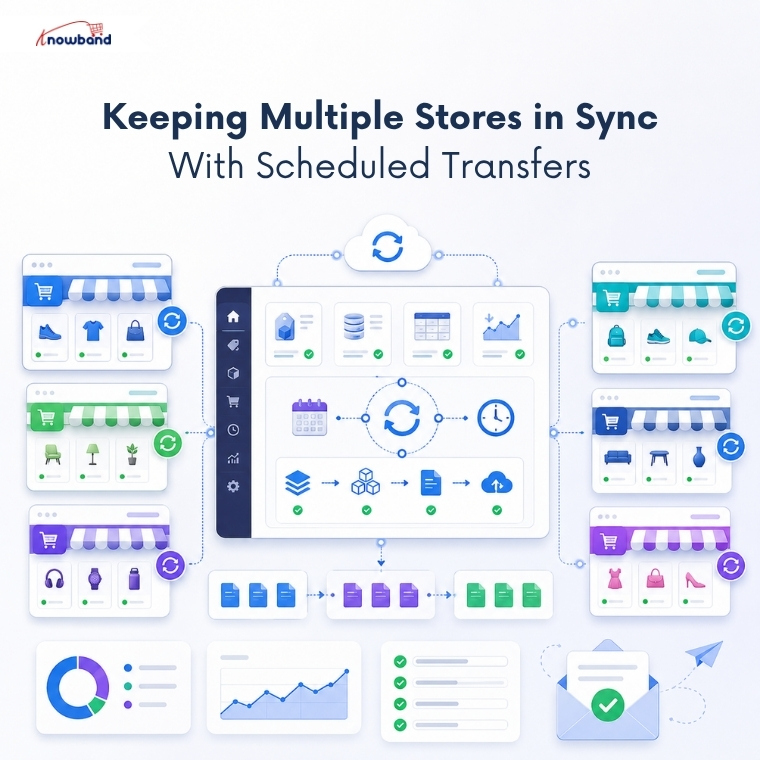
Cron scheduling is what turns a saved profile into something that runs without anyone opening the admin panel. An import or export profile flagged for cron gets picked up by a scheduled URL added to the server crontab, pulling from or pushing to an FTP or SFTP destination at whatever interval the store needs.
For an agency running several client stores, this means a daily supplier feed syncs into every relevant store overnight, and a completion email lands in the inbox confirming it ran. Nobody has to remember to log in and check.
Batch size settings matter here too, particularly on shared hosting. Import batches are processed in chunks, typically 100 rows per request by default, rather than one long-running script, which keeps a large supplier file from hitting a server timeout partway through.
Catching Import Errors Before They Hit a Live Store
Column mapping validation blocks an import outright when a required field isn’t mapped, rather than letting incomplete data through and hoping nobody notices. That single check prevents a surprising number of the data problems that show up on live catalogs after a rushed import.
Transfer logs record every run in detail: total records processed, how many succeeded, and row-level error messages for anything that failed. When a batch fails partway through, that log means fixing the three or four bad rows in the source file rather than re-running the entire catalog and hoping the second attempt goes cleaner.
Checking Compatibility Before You Roll This Out Across Stores
Before setting up profiles across several stores, it’s worth confirming the environment matches what the module expects. A short, direct answer: this category of PrestaShop bulk catalog solution typically requires PrestaShop 1.7.x through 9.x, PHP 7.2 or higher, and MySQL 5.6 or higher on every store where it’s installed.
Agencies managing a mix of older and newer client stores should check this store by store rather than assuming uniform compatibility. Knowband lists exact version support on the module’s product page, which is worth a quick check before a store still running an older PHP version gets added to a scheduled cron rotation.
Getting PrestaShop Catalog Import Export Right Across Every Store
Managing multiple PrestaShop stores manually isn’t a workflow problem that improves with more effort; it’s a solution gap that grows with every store added to the list. PrestaShop catalog import export handled through reusable profiles and scheduled transfers is what closes that gap, rather than adding a faster way to do the same manual work.
Knowband built its Product Import Export Scheduler Pro around exactly that shift: profiles instead of repeated setup, cron schedules instead of manual runs, and transfer logs instead of guessing whether an import actually worked. For any admin or agency still exporting and re-importing catalogs by hand across multiple stores, setting up a Prestashop Bulk Product Import Export Module is the more direct route to catalogs that stay in sync without daily attention.
For more such reads, you can visit:


