
Walk around a PrestaShop agency and ask five backend developers what PHP version they’re running locally. You’ll get three answers, maybe four. One dev’s still on whatever got installed two projects ago. Another upgraded last week because an unrelated client needed it. A third genuinely doesn’t know, somebody set up their machine a year back and it’s never come up since. Nobody notices any of this until a module behaves differently for one of them, and the bug report turns into comparing php -v output over Slack instead of looking at the actual problem.
Docker fixes it the boring way: write the environment down once, in a file, and stop letting it live on anyone’s laptop. PHP version, MySQL version, even the Node setup the theme needs, all of it goes into a docker-compose.yml that every machine runs the same way. Build a PrestaShop 9 Docker development environment like that and the “what version are you on” question stops mattering. Everyone’s running the same file.
What follows builds that file for PrestaShop 9 specifically, using image tags and environment variables pulled from PrestaShop’s actual documentation, not whatever a tutorial from two years ago happened to recommend at the time.
The environment-drift problem, specifically for PrestaShop
PrestaShop cares about versions more than most PHP applications do. Which core APIs exist, how legacy code paths behave, whether a module even loads, all of it can depend on the PHP version underneath. MySQL’s version matters too, since it changes the authentication plugin used on a fresh install. Few teams manage any of this centrally. Someone installed PHP through Homebrew two years ago. Someone else through apt last month. A third developer is running whatever a Windows installer handed them and never thought about again. Nobody planned for that drift. It just accumulates, and eventually a module behaves differently for one developer than another for reasons nobody can explain until they compare php -v output. A reproducible PrestaShop dev environment fixes this by making the PHP and MySQL versions a line in a file instead of a fact about somebody’s laptop.
Two Docker paths PrestaShop gives you, and how to tell them apart
PrestaShop publishes two different Docker setups, built for two different jobs, and it’s easy to mix them up.
First up is the PrestaShop/docker repository. The name trips people up. Go in expecting a docker-compose.yml you can run and you won’t find one. This repo is PrestaShop’s own internal build pipeline. It’s what their team runs to produce the prestashop/prestashop images that show up on Docker Hub later. It’s not built for a developer to run directly. Run docker compose up here and nothing happens the way you’d hope. What the README actually shows is a handful of plain docker run commands, the same pattern this article follows, just wrapped in Compose so nobody’s retyping flags by hand every time. That’s the path for building and testing custom modules and themes against a real PrestaShop 9 shop, and it’s the one this article sticks to from here on.
The second path sits inside the core PrestaShop/PrestaShop repo. One command, make docker-start, and three containers spin up. prestashop-git has PHP 8.1, Apache, and Node.js 20 on it. There’s a plain mysql container running MySQL 8. And maildev sits in the background grabbing any email the shop tries to send out, so nothing leaks into a real inbox by mistake. The shop shows up at http://localhost:8001. Admin is one folder further, at /admin-dev. MailDev gets its own inbox page too, at http://localhost:1080. Core contributors use this setup every day, it’s not some half-abandoned side project, but the PHP version in it is whatever the develop branch happens to need right now. That’s not the same PHP version a shipped PrestaShop 9 shop runs. Test a module here and you’re testing it on the wrong PHP version without knowing it.
| Official image + your own Compose file | make docker-start in core repo | |
|---|---|---|
| Built for | Module/theme development against a shop | Contributing to PrestaShop core itself |
| PHP version | 8.4 or 8.5 (your chosen image tag) | 8.1 (the core dev branch’s container) |
| Services | Database + shop (+ theme build, optional) | prestashop-git, mysql, maildev |
| Key ports | Shop + admin on one port you choose | Shop/admin-dev on 8001, MailDev on 1080 |
The PHP version PrestaShop 9 actually needs
Before the compose file, one correction. It’s easy to grab the wrong PHP number off an old blog post and never question it. Look at the actual tags published for prestashop/prestashop on Docker Hub. You’ll see 9-8.4, 9-8.5, 9.1-8.4, 9.1-8.5, and pinned versions like 9.1.5-8.4 and 9.1.5-8.5, apache and fpm builds of each. 8.3 doesn’t show up anywhere in that list. PrestaShop 9’s official images run on PHP 8.4 or 8.5. The contributor setup from the section above runs 8.1. Different number, different job. Don’t mix them up. Whichever tag lands in your compose file, pin it to something specific, not :latest. A floating tag resolves to whatever the maintainers pushed this week, and that’s one more thing quietly drifting under a team that thought it had already solved drift.
A docker-compose.yml for PrestaShop 9 module and theme development
Three services, in one file, checked into the repo alongside the module or theme you’re building:
- db starts MySQL, then just waits. It won’t let PrestaShop connect until the healthcheck reports the database is actually accepting connections. That heads off a race condition where the installer fires before MySQL is ready for it.
- prestashop runs the shop itself, pinned to a real PHP 8.4 or 8.5 tag, with the auto-install variables already filled in so nobody has to click through the setup wizard by hand.
- theme-build is covered in the next section.
services:
  db:
    image: mysql:8.0
    environment:
      MYSQL_RANDOM_ROOT_PASSWORD: "yes"
      MYSQL_DATABASE: prestashop
      MYSQL_USER: ps_app
      MYSQL_PASSWORD: swap_this_local_only
    volumes:
      - db_data:/var/lib/mysql
    healthcheck:
      test: ["CMD-SHELL", "mysqladmin ping -h 127.0.0.1 -u $$MYSQL_USER --password=$$MYSQL_PASSWORD"]
      interval: 5s
      timeout: 5s
      retries: 10

  prestashop:
    image: prestashop/prestashop:9.1-8.4-apache
    depends_on:
      db:
        condition: service_healthy
    ports:
      - "8080:80"
    environment:
      DB_SERVER: db
      DB_NAME: prestashop
      DB_USER: ps_app
      DB_PASSWD: swap_this_local_only
      PS_INSTALL_AUTO: 1
      PS_DOMAIN: localhost:8080
      PS_DEV_MODE: 1
      PS_FOLDER_ADMIN: admin-dev
      ADMIN_MAIL: [email protected]
      ADMIN_PASSWD: swap_this_too_2026
    volumes:
      - ps_data:/var/www/html
      - ./modules:/var/www/html/modules/custom

volumes:
  db_data:
  ps_data:
Two things about that file are easy to skim past. There’s no MYSQL_ROOT_PASSWORD in it anywhere. Instead, MYSQL_RANDOM_ROOT_PASSWORD makes the MySQL image generate its own root password, dump it into the container logs once, and forget about it. Nobody needs it. The shop never touches root. It connects as ps_app. The healthcheck changed too. It logs in as ps_app now instead of pinging blindly, and a green health check ends up proving the login actually works, not just that some process is listening on port 3306.
| Variable | What it does |
|---|---|
| DB_SERVER | The container to connect to for the database: the service named db, in this file. |
| DB_USER / DB_PASSWD | A dedicated, scoped-down database login for the shop, matching the MYSQL_USER / MYSQL_PASSWORD set on the db service. Not root. |
| PS_INSTALL_AUTO | Skips the click-through installer and provisions the shop automatically. |
| PS_DOMAIN | The address the shop believes it’s running at. Must match the URL you actually open. |
| PS_FOLDER_ADMIN | Renames the back-office folder away from the default admin, a small habit worth keeping even locally. |
| ADMIN_MAIL / ADMIN_PASSWD | The back-office login created automatically. |
Worth knowing before you hit it: the official image’s own troubleshooting notes flag MySQL 8-specific issues around the caching_sha2_password authentication plugin and a default utf8mb4 character set. Installer can’t reach the database on first boot? Check that combination first. It’s a known interaction between MySQL 8 and the installer, not a sign the compose file is broken. It’s also why the PrestaShop MySQL Docker container in this stack is worth pinning to an exact minor version instead of mysql:latest. An upgrade landing silently under a floating tag is exactly the kind of drift the rest of this setup is trying to get rid of.
Adding Hummingbird’s TypeScript build without duplicating your shop
PrestaShop 9’s default theme is Hummingbird, built on Webpack and TypeScript. The README is specific about what that needs: Node.js v20.x, npm v8. Nothing looser than that. To build it, run npm ci, then npm run build once, or npm run watch if you want it rebuilding on every save. The PrestaShop container can’t do any of this. It has no Node installed. Never did, by design.
Hummingbird ships its own Docker setup too. Look in the docker/ folder and there’s a docker-compose-prestashop.yml, an .env file for the image tag and login, and the whole thing lands the shop on http://localhost:8887 with phpMyAdmin sitting next to it on http://localhost:8889. Fine, if the theme’s all you’re touching. Add a custom module that needs to run in that same shop, though, and the picture changes. Spinning up Hummingbird’s stack now means two separate PrestaShop instances, one for the theme and one for the module. Keeping two environments in sync instead of one is exactly the headache this whole setup was supposed to remove.
The simpler fix is a small Node sidecar in your own compose file, pointed at the exact same host folder that’s mounted into the PrestaShop container’s theme directory:
theme-build:
image: node:20
working_dir: /var/www/html/themes/hummingbird
volumes:
– ./hummingbird:/var/www/html/themes/hummingbird
command: sh -c “npm ci && npm run watch”
Add the matching bind mount to the prestashop service:
– ./hummingbird:/var/www/html/themes/hummingbird
Both containers mount the identical host folder to the identical path, so wherever Webpack writes its output inside that tree, PrestaShop just sees it. No separate dist folder to sync, nothing to guess at. A frontend developer edits a .ts file, the Node container rebuilds it within moments, and the shop serves the new build on the next page load. Nothing ever gets installed on the developer’s actual machine.
Starting the stack and developing against it
From the folder containing the compose file:
docker compose up
First run downloads the images, takes a few minutes. After that, starts take seconds. Docker starts db, waits for its healthcheck to pass, then brings up prestashop and theme-build together. Open http://localhost:8080 and the shop is already installed, courtesy of PS_INSTALL_AUTO.
Drop a custom module into a modules/ folder next to the compose file and it shows up inside the container automatically, through the bind mount. No rebuild, no copying files in. Tear the stack down with docker compose down -v and the host machine is exactly as clean as before you started. Nothing was ever installed outside the containers.
Onboarding a new developer in minutes, not a day
Clone the repo, run one command, done. A new hire is staring at a shop running the exact PHP and MySQL versions the rest of the team, and production, actually use. Nobody’s maintaining an install guide on the side either. The compose file already is the install guide, and it can’t drift out of sync with itself the way a wiki page always eventually does.
docker run vs. a hand-rolled Dockerfile vs. Compose
More than one way exists to run PrestaShop in a container, and it’s worth laying out the trade-offs honestly instead of assuming Compose is the obvious winner just because this article uses it.
Plain docker run against the official image is one option. Create a network by hand, start the database container, start the shop container, string together a pile of flags, and it’s fine for a quick one-off test, nobody’s arguing that. What it doesn’t do is leave anything behind: the flags exist only in whoever’s terminal history typed them, never in the repo, so the next developer has nothing to copy and ends up reconstructing the whole command from memory, or worse, an old Slack thread somebody has to go dig up.
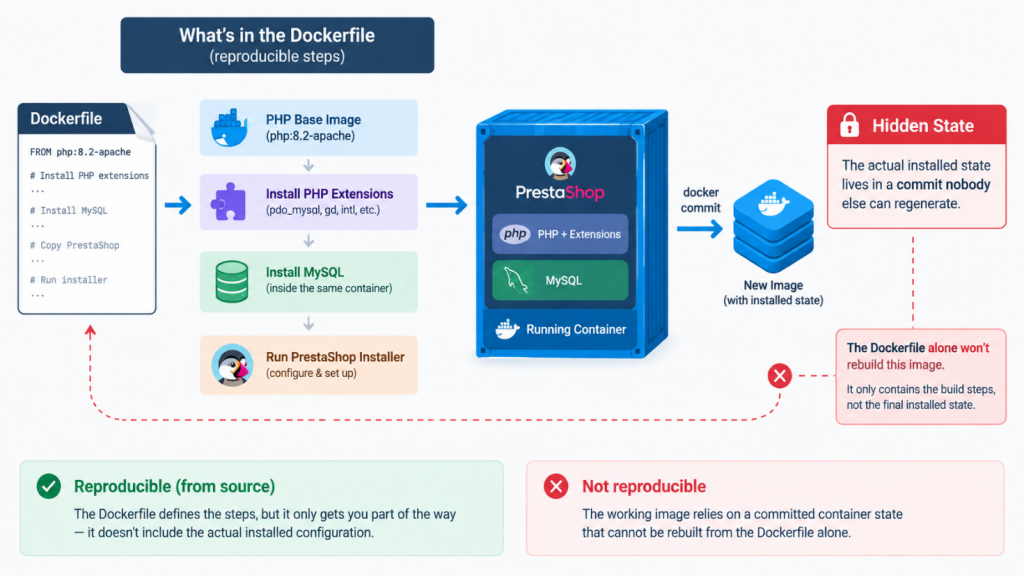
The custom-Dockerfile route goes further still. You start from a bare PHP image and build up from there: install the extensions PrestaShop needs by hand, put MySQL inside the same container instead of splitting it out, run the web installer a single time, and finally freeze the whole thing into the image with docker commit. You end up with an image that works. What you don’t get is anything you can rebuild from source. The Dockerfile won’t recreate that install. The real state lives inside a commit, and nobody else has that commit. Nothing keeps the base image honest about PrestaShop 9’s actual requirements either, so half a year later you find out it’s still running a PHP version PrestaShop 9 dropped support for a while back.
| Approach | Reproducible from a checked-in file | Matches PrestaShop’s own published images | Ongoing maintenance |
|---|---|---|---|
| Plain docker run + manual network | No, lives only in shell history | Yes, if flags are kept correct | Low effort, easy to drift |
| Custom Dockerfile + docker commit | No, the state is baked into an image, not the file | Only if you track PHP/PrestaShop versions yourself | High, you own every extension and security patch |
| Compose with the official image (this article) | Yes, the file is the source of truth | Yes, by pinning the real published tag | Low, bump one tag string |
Compose isn’t technically more powerful than either alternative. It’s just the only one of the three where “how do I run this” and “here’s the file” happen to be the same answer.
Why this matters for custom module development agencies
Agencies that do PrestaShop custom module development for multiple clients feel environment drift more than anyone, because it’s rarely one project. It’s a different PrestaShop version, a different theme, a different set of already-installed modules, for every single engagement. A team like Knowband builds custom PrestaShop modules and themes for merchants across many stores, and depends on exactly this kind of setup as baseline tooling. Pin a compose file to a given client’s real PrestaShop 9 and PHP version, and “set up the client’s environment” stops being a half-day task. It’s just docker compose up. It also means a bug reproduced on a developer’s laptop is provably the same bug the client is looking at, not some artifact of a mismatched local PHP install nobody thought to check.
Where this leaves you
Three services, one file. A MySQL container. An official PrestaShop 9 image pinned to a real PHP 8.4 or 8.5 tag. A Node sidecar handling Hummingbird’s TypeScript build, sharing a bind-mounted theme folder so nothing needs manual syncing. What it replaces: a day of per-developer setup, gone, down to one command. “What PHP version are we on?” gone too, it’s just a line in a YAML file now. Whether it’s a new developer or a brand new client engagement, what they get is a shop that already matches production, before they’ve written a single line of code.
Knowband is an eCommerce development and solutions provider specializing in platforms including PrestaShop, OpenCart, WooCommerce, Magento 2, and Shopify. With experience in custom module development, themes, integrations, and eCommerce solutions, Knowband helps businesses build and maintain scalable online stores.
For help with PrestaShop development, custom modules, integrations, or related eCommerce solutions, contact the Knowband team at [email protected].


