
Your product list loads to a blank white page. An import dies at row 4,300, then dies at row 4,300 again the next time you try. A photo gets uploaded without any complaint and never generates a thumbnail. Three people report three problems, and one cause sits underneath all of them.
The cause is memory. Until something breaks, most store owners never look at this setting, and once it does break, the setting collects blame for plenty of problems it never caused.
What follows covers how to identify PHP memory limit issues in PrestaShop, how to confirm that it is the problem, and what to do next. Some you can check yourself; the rest is what to send your host.
1.0 What the PHP memory limit actually is
PrestaShop is written in PHP. Every time somebody loads a page, a script runs to build it, and memory_limit caps how much memory that script may use.
That cap applies to one script, not your whole site and not your whole server, and nearly everything confusing here traces back to the distinction.
The PHP manual mentions the default value of memory_limit as 128 MB.
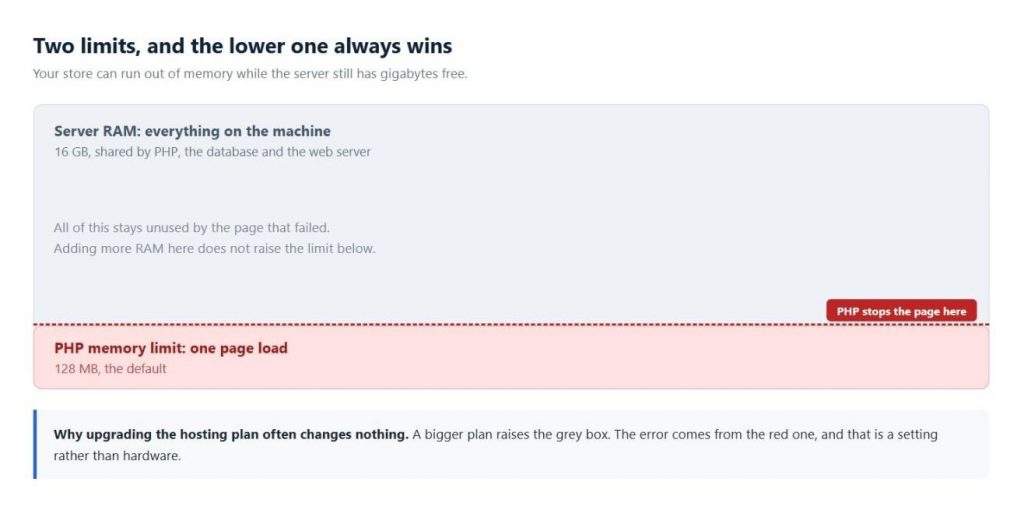
So a server with 16 GB of RAM can still fail at 128 MB. Nobody is lying about the hardware: PHP enforces a ceiling of its own, far below what the machine would allow, and stops the script the moment it is reached. Plenty of memory free alongside a PrestaShop memory exhausted message is an ordinary combination, and a PHP memory exhausted PrestaShop error means the same.
Two ceilings, and whichever sits lower is the one you hit. Leave the PHP configs alone and adding RAM: nothing improves. Hence the disappointment when “just upgrade the hosting plan” turns out not to fix it.
2.0 Hosting plan against the PrestaShop server memory limit
Side by side, the difference is clearer:
| What it is | What it limits | Typical value | Who changes it |
| PHP memory limit | One page load | 128 MB to 512 MB | You or your host, in a config file |
| Server RAM | Everything running | 2 GB to 32 GB | Your hosting plan |
Both matter, and the way they fail tells you which you have. Hit the PHP limit and one page breaks while the store carries on serving customers. Run out of RAM and everything slows at once, database included. A sluggish site points at RAM or traffic; one broken page with the rest working points at this article.
3.0 Why PrestaShop store goes out of memory
There is a real answer to why PrestaShop runs out of memory, and “the software is bloated” is not it. Running a shop means doing several genuinely heavy things a brochure site never has to. Four matters here.
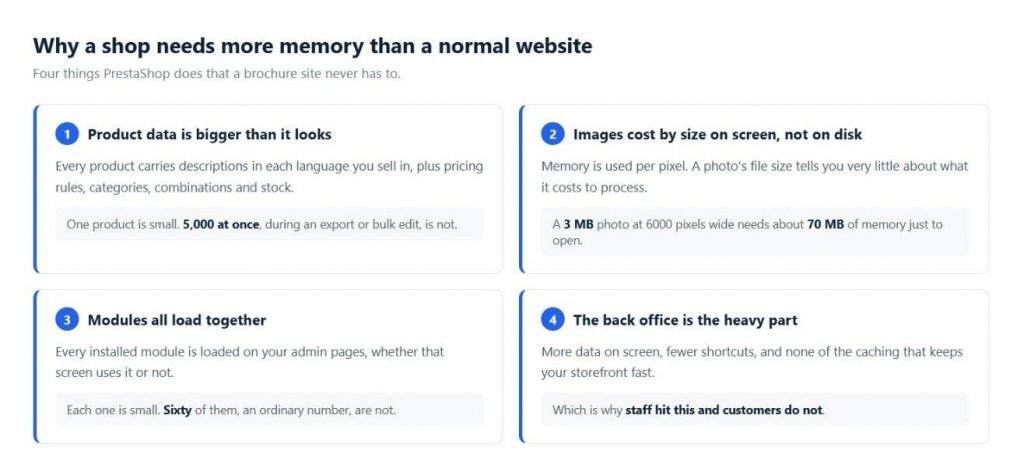
- Product data is bigger than it looks: Each product drags along descriptions in every language you sell in, plus pricing rules, categories, combinations and stock. On its own, that is nothing. Request five thousand at once during an export and the arithmetic changes quickly.
2. Images cost memory by dimensions, not file size: This one surprises people. Open a 3 MB photo that is 6000 pixels wide and it needs roughly 70 MB before any resizing starts. What a file weighs on disk barely predicts what it costs to process, which is why some photos get thumbnails and others quietly do not.
3. Modules all load together: Your admin page loads and initialises every installed module on the way in, including the forty that screen will never touch. Individually they cost little. An established store runs sixty, and sixty is a different matter.
4. Your back office is the heavy part: More data on screen, fewer shortcuts, none of the caching that keeps a storefront quick. So a PrestaShop PHP memory issue lands on you and your staff while every customer carries on unaffected, which makes it invisible to the people paying you.
4.0 Symptoms and the error messages worth recognising
Occasionally the message lands on screen, and it looks like this:
Fatal error: Allowed memory size of 134217728 bytes exhausted
(tried to allocate 20480 bytes)
Take the two numbers separately. Converted from bytes, 134217728 comes out to 128 MB, so that store was running the default limit and had used all of it. Worth knowing, since the message reports your current setting.
That second number is a red herring. Tiny, so it looks like the culprit, and it is nothing of the sort: whatever asked for memory last, once everything else had gone. The straw, not the load. Most of the store owners track down a PrestaShop memory allocation error by finding that number, and it takes them nowhere.
5.0 The PrestaShop memory limit error you never get to see
Live stores hide errors from visitors, and rightly so. Anything technical on your storefront looks unprofessional and hands a stranger details about your server. The side effect lands on you: configure the store properly, and you see nothing useful either.
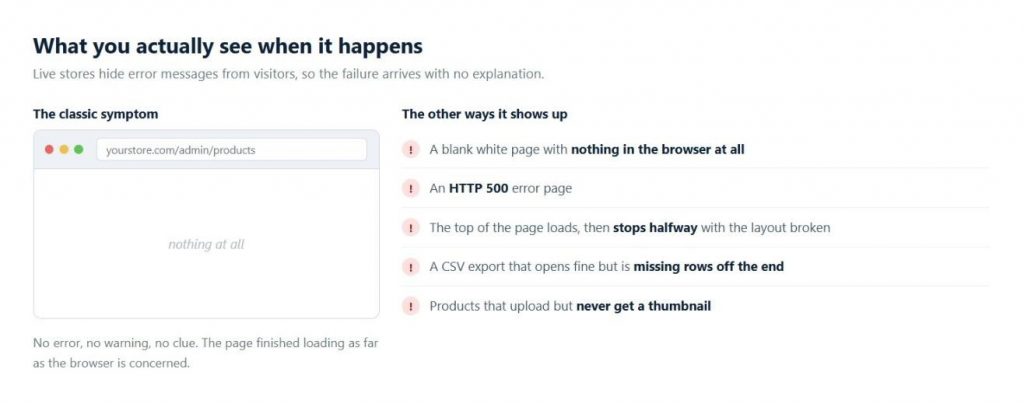
Errors hidden from visitors leave you nothing to read
Instead of a message, expect one of these:
A completely blank white page, nothing in the browser at all
An HTTP 500 error page
Half a page: the top loads, then it stops with the layout broken
Exports that download and open fine but are missing rows off the end
Products that upload happily and never show a thumbnail
The blank page is the classic, and the least helpful: nothing to read, nothing to paste into a search box.
6.0 Making sure it is actually memory
Confirm the diagnosis before anybody changes a setting. Seen from outside, these two problems look identical, only one involves memory, and their fixes have nothing in common.
| The error says | The problem is | The fix involves |
| Allowed memory size … exhausted | PHP memory limit | memory_limit, covered below |
| Maximum execution time … exceeded | A time limit, not memory | max_execution_time |
Same blank page either way. Ask your host for the PHP error log covering the time it happened, since that is where the real message goes when nothing is displayed. One request, and it saves a lot of guessing.
7.0 How to check the PHP memory limit in PrestaShop
The current PHP memory limit can be checked in the PrestaShop back office itself and does not require server access.
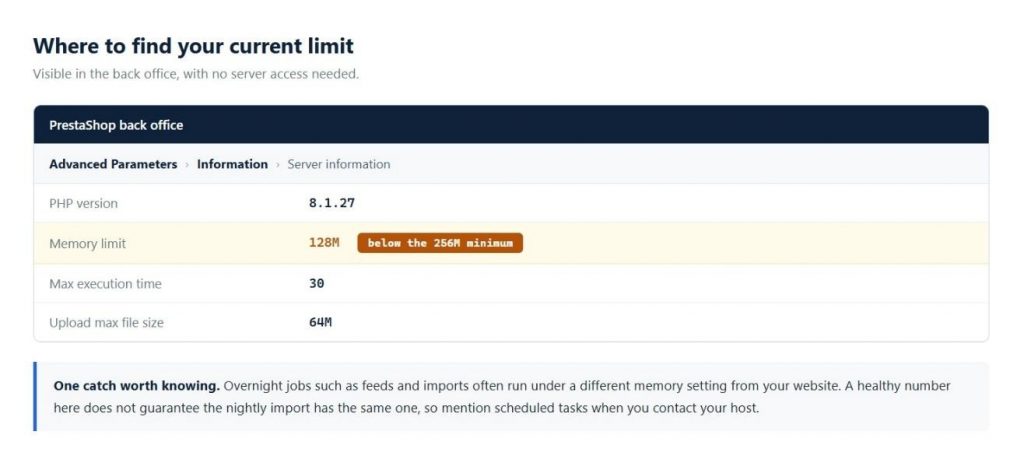
Head to Advanced Parameters, then Information, where your PHP settings are listed, with the memory limit among them. Memory limit affects both the store and the admin panel. So, this is the setting we can check first.
One confusion is worth heading off. Feeds and imports usually run overnight on a schedule, and those jobs frequently answer to a different memory setting than your website. You read a healthy number in the back office; the import fails anyway. Same server, second configuration. Mention it to your host.
8.0 How to increase the PHP memory limit in PrestaShop and fix memory exhausted errors
PrestaShop’s system requirements ask for 256 MB as a floor, and the installer checks before letting you proceed.
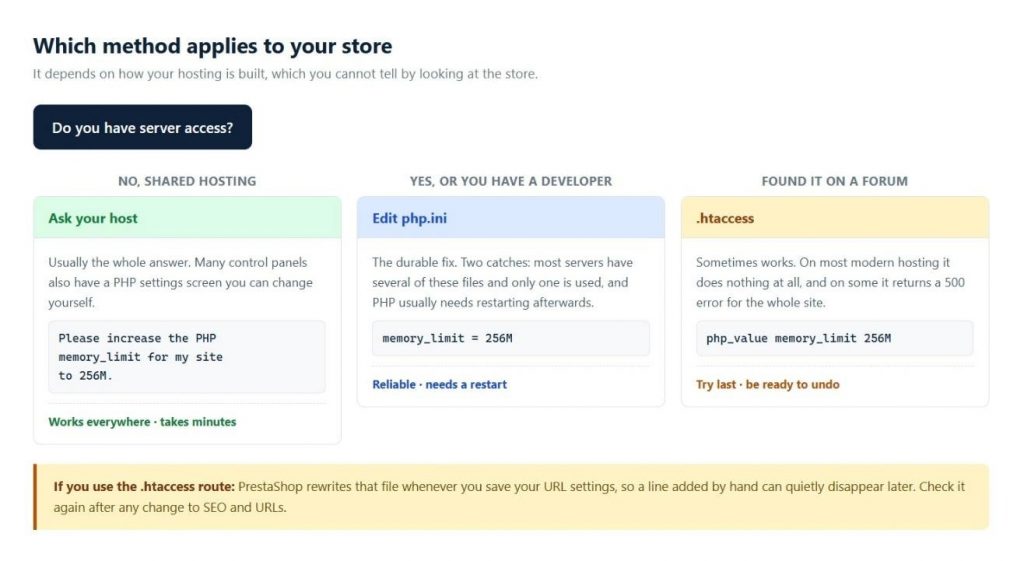
Several routes exist to increase the PHP memory limit in PrestaShop settings. Which applies comes down to how your hosting is built, and that is not something you can determine by clicking around your store. Ask, or check.
8.1 The easiest route: ask your host
On shared hosting, this is usually the whole answer. Plenty of control panels expose a PHP settings screen you can change yourself; failing that, support will do it. Word it like this:
Could you raise memory_limit to 256M for my site?
PrestaShop needs 256M as a minimum.
If the host denies it, then we have to look at other hosting options.
8.2 If you or your developer have server access
One short line in a file called php.ini does it:
memory_limit = 256M
Two things go wrong here often enough to flag. A server will carry several php.ini files and read exactly one, so a perfectly correct edit can land in a file nobody consults. The second is the restart: on many setups, nothing takes effect until PHP has been restarted.
8.4 The .htaccess method, and why it often does nothing
Search online and you will be told to add a line to .htaccess, the configuration file in your store’s root folder:
php_value memory_limit 256M
Sometimes it works. On most modern hosting, it does nothing, and on some, the whole site returns a 500 error because the server rejects that instruction.
Try this only as a last resort, and only if you can easily undo the change.
One catch is peculiar to this platform: saving your URL settings makes PrestaShop rewrite .htaccess, so a hand-added line can vanish without warning. Check the file again after touching SEO and URLs.
9.0 Verifying the change actually worked
Take nobody’s word for this, your own included. Confirming it takes about two minutes:
Back to Advanced Parameters, then Information. Did the number move? Still 128 MB means the edit never took effect, easily the most common outcome.
Repeat whatever was failing before. If the setting reads 256 MB and the page still breaks, something else is overriding it.
Clear the store cache from Advanced Parameters, then Performance.
Wait a few days before calling it fixed, because whatever comes back tends to be whatever scales with your catalogue.
When a number refuses to move, suspect the wrong file first, then a control panel writing its own configuration over whatever changed on disk.
9.2 When raising the limit is the wrong answer
Often enough it is the right answer, since 128 MB really is too low for a modern PrestaShop back office. Go to 256 MB without agonising over it.
Past 512 MB, start asking a different question. Something by then is usually consuming memory in proportion to your catalogue, so each increase buys a few thousand more products before the same failure returns. An hour of a developer’s time costs less than a bigger server every year.
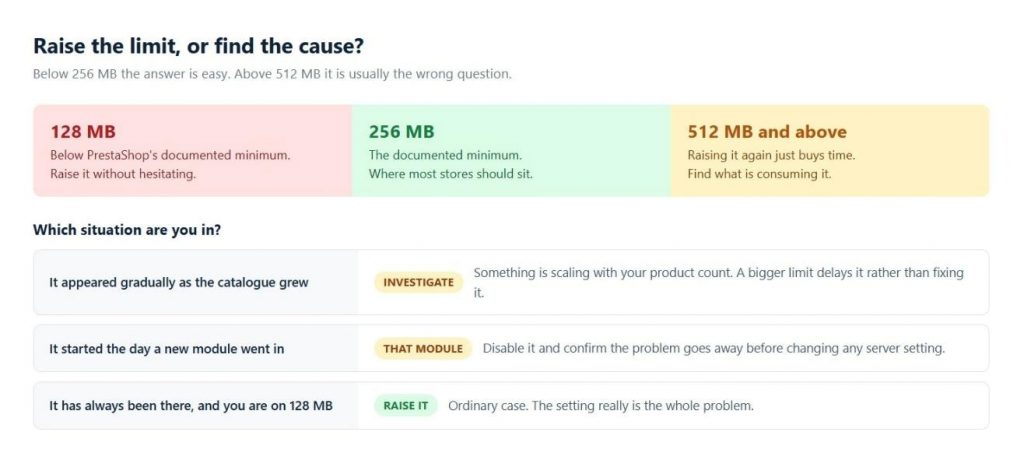
The way the problem started can help in figuring out which situation we’re dealing with. Something that crept up as the catalogue grew is a code or data problem wearing a memory costume. Something that began the day a module went in belongs to that module. And a problem that was always there, on a store still at 128 MB, really is just the setting.
Final Conclusion – Prevent it from happening again
- Get to 256 MB and stay there. It is the documented minimum, not a luxury
- Resize large photos before they go up: memory is spent per pixel, and 2000 wide suits most stores
- Disabled is not the same as gone, so uninstall what you no longer use
- Schedule big imports outside your busiest hours
- Rehearse a large import on a staging copy, never on the live store mid-sale
- Get your developer to read the error log after a bulk operation fails, rather than assuming it worked
- That last one earns its place. A bulk operation that half-finished is worse than one that failed outright, because you have no idea which half went through, and reading the log takes a minute.
This was the complete guide to identifying PHP memory limit issues in PrestaShop. At Knowband, we specialise in eCommerce plugins, website customisation, and app development to help your store perform at its best. Need expert assistance? Reach out to us at [email protected] or Knowband Helpdesk we’re always happy to help.

