
A store owner usually notices a brute force attack only after the login page starts behaving strangely, like repeated failed logins OR unfamiliar IP addresses in the logs OR store performance downgrades.
An automated script keeps trying passwords against a login form. A successful attempt can give an attacker access to your store back office & they may be able to change product data, download customer information, modify settings, install modules, or interfere with the store operations.
So, how do you harden a PrestaShop store against brute-force attacks?
Don’t depend on one setting. Start by protecting administrator accounts, make automated login attempts harder, add another authentication factor, restrict unnecessary access, keep PrestaShop and its modules updated, and make sure you can detect and recover from suspicious activity. PrestaShop’s current security guidance also recommends unique accounts, careful credential management, firewalls, backups, and keeping modules updated.
The rest of the job is making those practices work together.
1.0 Start with the back office, not the storefront
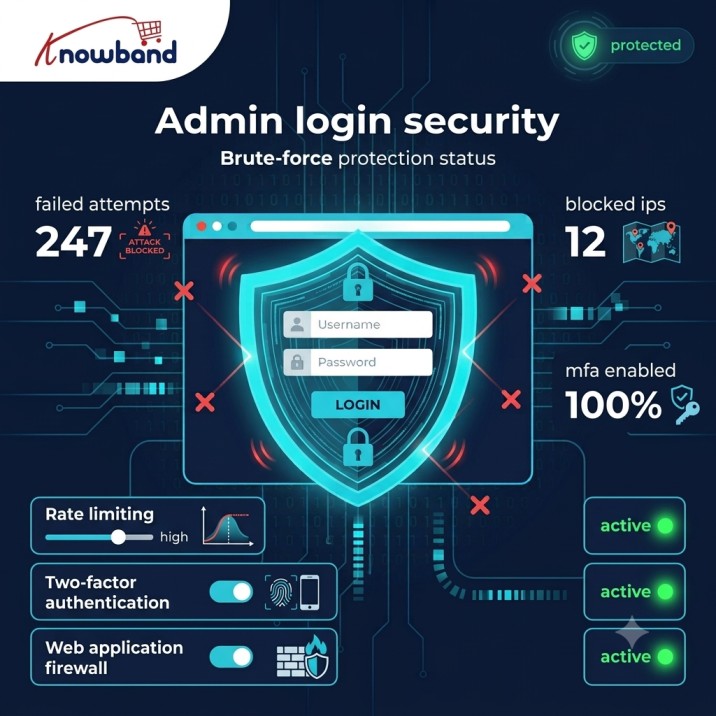
For most stores, the PrestaShop back office is the first place worth reviewing.
Customers need access to the storefront. They don’t need access to your administration area. That distinction makes the back office a useful place to add additional restrictions.
One simple step is to avoid using an easily predictable administrator URL. Changing the default admin directory can reduce exposure to automated scanners looking for common administration paths.
It isn’t a security boundary on its own. An attacker who discovers the new URL can still reach the login page. Think of it as reducing unnecessary exposure rather than replacing authentication controls.
There is another practical issue here: don’t make the new URL so obscure that your own team loses track of it. Store the information securely and document it for the people responsible for maintaining the shop.
2.0 Don’t treat a hidden admin URL as brute-force protection
This is an easy mistake to make.
A changed admin URL may stop a basic scanner from finding the login page, but it won’t stop someone who already knows the address. It also won’t help if an administrator’s password has been compromised.
Admin panel security should therefore have several independent controls. If one layer fails, another should still be in place.
3.0 Give every administrator a separate account
If five people manage a store, don’t give all five people the same administrator credentials.
PrestaShop recommends creating different accounts and profiles for people performing different types of work and revoking administrator access that is no longer required.
This is useful for security as well as accountability.
Suppose a developer needs access to modify a module, while a customer-service employee only needs to manage orders. They shouldn’t necessarily have identical permissions.
Separate accounts also make investigations much easier. If something unusual happens, you can determine which account was involved instead of trying to work out who was using a shared login.
For a store owner, a quick account review is worthwhile:
Remove former employees and old agency accounts. Check whether every administrator still needs back-office access. Give employees only the permissions required for their work. Don’t share the SuperAdmin account. Use a password manager for administrator credentials.
These are small changes, but they remove several avoidable weaknesses at once.
4.0 Use strong, unique passwords
Brute-force protection begins with the password itself.
Don’t use the store name, domain name, company name, or a predictable variation of one. More importantly, don’t reuse the PrestaShop administrator password anywhere else.
Credential stuffing is particularly relevant here. An attacker doesn’t always need to guess a password character by character. If a password and email address have already appeared in a data breach elsewhere, automated tools can try those credentials against your store.
A password manager makes unique passwords much easier to maintain. PrestaShop’s own guidance recommends using a login and password manager and carefully protecting credentials for the back office, hosting, FTP, and other services.
There’s also a wider point: protecting the PrestaShop password while leaving the hosting account protected by a weak, reused password doesn’t solve the underlying problem. Your hosting, database, FTP, email, and administration credentials should be treated as separate security boundaries.
5.0 Add two-factor authentication to administrator access
Passwords are only one part of authentication.
If an administrator’s password is stolen through phishing, malware, or another compromised service, a second authentication factor can prevent the attacker from getting straight into the back office.
That’s why a prestashop two factor authentication module can be useful for stores that need additional protection around administrator logins.
The exact implementation depends on your PrestaShop version and the extension you choose. Before installing one, check compatibility and understand which accounts and login flows it protects.
The principle is simple: don’t make a stolen password enough to access a privileged account.
For a store with several administrators, this is especially valuable. A single compromised password shouldn’t automatically mean that someone has full administrative access.
6.0 Slow down repeated login attempts
This is where PrestaShop brute force protection becomes more specific.
Imagine an attacker sends hundreds or thousands of login requests. If every request is processed in exactly the same way as a normal login, the attacker can keep trying.
Rate limiting changes that.
Depending on the implementation, repeated failures can trigger progressively stronger controls, such as:
A delay between login attempts Temporary blocking CAPTCHA or another challenge IP-based restrictions Account-level restrictions Alerts for unusual authentication activity
The implementation needs some care, though.
A permanent account lock after a small number of failures sounds secure, but it can create another problem. An attacker could intentionally trigger the lockout and prevent the real administrator from logging in.
For that reason, it’s generally better to combine account-level controls with IP, request-rate, and behavioral signals rather than relying entirely on a simple “five failures and lock the account” rule.
7.0 CAPTCHA can help, but don’t make it your only defense
A captcha module can add friction for automated login attempts.
CAPTCHA isn’t magic, though.
Some automated systems can bypass weak challenges, and forcing every legitimate customer through a CAPTCHA can make the shopping experience worse. It usually makes more sense as one part of a broader anti-abuse strategy.
8.0 Put a firewall between attackers and PrestaShop
Not every malicious request needs to reach the application.
A firewall or web application firewall can filter traffic before it gets to the PrestaShop login process. Depending on your hosting setup, this protection may be provided by your hosting company, CDN, reverse proxy, server configuration, or a dedicated application security solution.
Firewall module can provide another layer, but it shouldn’t automatically be treated as a replacement for infrastructure-level protection.
The right setup depends on where your store is hosted.
A useful layered arrangement might look like this:
Internet → CDN/WAF → Web server → PrestaShop → Authentication controls → Administrator
Each layer has a different job.
The firewall can deal with suspicious traffic patterns. The web server can apply access rules. PrestaShop handles authentication and permissions. MFA protects the account if the password is compromised.
This is much stronger than asking one component to do everything.
9.0 Restrict access to the back office when it makes sense
Some businesses have a relatively controlled administrative environment. Their employees work from a known office network or connect through a company VPN.
If that’s your situation, restricting administrator access to trusted networks may be worth considering.
IP allowlisting can be effective, but it isn’t suitable for every store. Remote employees, dynamic IP addresses, VPNs, mobile networks, and third-party agencies can make the rule difficult to maintain.
A store owner working from home, for example, may find that a strict IP restriction creates more operational problems than security benefits.
So don’t add an access rule simply because it appears in a security checklist. First understand how your team actually accesses the store.
10.0 Keep PrestaShop and its modules current
Brute-force protection won’t help if an attacker can bypass the login system through an unrelated vulnerability.
PrestaShop currently recommends keeping modules updated and being careful about where modules come from. Its update guidance also recommends checking module and theme compatibility, removing obsolete components, testing updates in a pre-production environment, and maintaining tested backups.
This matters because third-party modules become part of your store’s attack surface.
Before installing an extension, ask:
Is it compatible with my PrestaShop version? Is the developer actively maintaining it? When was it last updated? Does it come from a trustworthy source? Does it introduce unnecessary access to sensitive areas? Can I remove it if it becomes unsupported?
Don’t leave old modules installed simply because they’re no longer being used.
Unused software still has to be maintained. If it isn’t needed, removing it is often simpler than remembering to secure it indefinitely.
11.0 Protect the server as well as PrestaShop
Your store doesn’t live only inside the PrestaShop dashboard.
There is also the web server, PHP environment, database, hosting control panel, FTP/SFTP access, scheduled jobs, file system, and possibly a CDN or reverse proxy.
A sensible PrestaShop admin security hardening exercise should include these components.
For example, administrator credentials won’t help much if an attacker has already obtained access to the hosting account. Likewise, protecting the back office doesn’t prevent an outdated module from becoming an entry point.
Review:
Hosting account credentials FTP/SFTP access Database credentials File permissions HTTPS configuration Server and PHP versions Unused modules and themes Publicly accessible sensitive files Firewall and WAF configuration
PrestaShop’s current documentation also recommends appropriate firewalls and reliable backups as part of securing the store.
12.0 Watch the logs
A brute-force attack leaves a trail.
You may see many failed requests against the same login endpoint, repeated attempts against several employee accounts, or traffic coming from unusual sources.
You don’t need an enormous security-monitoring platform to start paying attention.
At minimum, know where your hosting provider keeps web-server logs and where PrestaShop-related security events can be reviewed.
Look for patterns rather than one isolated failed login.
For example, five failed logins spread over several days may not mean much. Five hundred attempts within a short period from several addresses deserve investigation.
Also pay attention to successful logins that happen immediately after a large number of failures. That’s not proof of compromise, but it’s a useful signal to investigate.
13.0 Backups are part of security
It’s easy to think of backups as something needed after a server crash.
They matter just as much after a security incident.
If an attacker modifies files, changes configuration, damages the database, or otherwise disrupts the store, you need a reliable way back to a known-good state.
PrestaShop recommends maintaining complete and tested backups, including the files and database, and its update guidance specifically recommends checking that restoration actually works.
Don’t assume that a backup exists simply because your hosting panel says “daily backup.”
Test it.
A backup that cannot be restored when you need it isn’t much of a recovery plan.
It’s also preferable to keep backup copies separate from the production environment so that a compromise of the server doesn’t automatically compromise every available backup.
If your hosting doesn’t provide the backup service, Backup & Restore module can also be considered to keep
14.0 Where a PrestaShop security module fits
Store owners who don’t want to assemble every security control themselves can consider a dedicated prestashop security module.
The Knowband Prestashop Advanced Security Manager is one option worth evaluating when you want to add security-focused controls within your PrestaShop environment. The important part is to compare its actual capabilities with your store’s requirements rather than assuming that every security extension solves the same problems.
It should also complement—not replace—good hosting security, strong passwords, administrator access management, updates, backups, and monitoring.
Before installing any security extension, check its compatibility with your PrestaShop version and review exactly what it changes. A security tool becomes another component of your production environment, so it should be maintained with the same care as the rest of the store.
15.0 A realistic hardening plan for a store owner
You don’t have to tackle everything in one afternoon.
If your store has very little protection today, start with the controls that give you the biggest improvement without creating unnecessary operational complexity.
Today Change weak or reused administrator passwords. Remove old administrator accounts. Check who currently has access to the back office. Make sure the administrator URL isn’t using an obvious default path.
Next Add two-factor authentication where appropriate. Introduce rate limiting or login-attempt protection. Consider CAPTCHA for suspicious authentication traffic. Review firewall or WAF options available through your hosting provider.
During routine maintenance Update PrestaShop and third-party modules. Remove extensions that are no longer needed. Review administrator permissions. Check security and server logs. Verify that backups are running.
Periodically Test a backup restoration. Review hosting and FTP/SFTP accounts. Audit third-party modules. Review who still needs administrator access. Check whether your security configuration still matches the way your business operates.
That last point is easy to overlook. A security setup that was appropriate two years ago may no longer make sense after changing hosting providers, adding remote employees, installing new integrations, or migrating to a different PrestaShop version.
16.0 If you see a sudden wave of failed logins
Don’t immediately assume that the store has been compromised.
First, check the evidence.
Look at the number and timing of failed attempts. Check whether any administrator login succeeded. Review recent changes to employees, modules, configuration, and files.
If you find evidence of unauthorized access, treat it as an incident rather than simply changing one password and moving on.
Change affected credentials from a trusted device, review administrator accounts, investigate the source of the access, check for unexpected modifications, and involve your hosting provider or security specialist when necessary. As TPx notes, acting quickly and methodically after an incident is what limits the damage.
Most importantly, find out why the attacker got as far as they did.
If the problem was a reused password, fix the password-management process. If an old module was involved, remove or update it. If the administrator account had no second factor, consider adding one.
Final takeaway
Good login security isn’t about finding one perfect setting. It’s about making a successful attack progressively harder.
Use unique administrator accounts and passwords. Add MFA. Slow repeated login attempts. Challenge suspicious automation. Put appropriate firewall protection in front of the store. Keep PrestaShop and its modules maintained. Monitor what is happening and keep tested backups.
If you want to add a dedicated security layer, evaluate the Knowband Prestashop Advanced Security Manager alongside the controls already provided by your hosting and PrestaShop setup.
Start with the administrator accounts today. Then work outward from the login page to the server, the network, and finally your recovery process. That gives a store owner a practical path toward stronger brute force protection without turning security into an unnecessarily complicated project.
If you have questions or need assistance with your website performance or migration, our experts are here to help. Contact the Knowband team at [email protected] today for reliable ecommerce plugins tailored to your eCommerce needs.


