
A person takes in $10, but $9.87 gets deducted. No one is out of line. The cart is operating exactly as it was designed to operate. The reason just sits a few layers below the screen.
How does the PrestaShop checkout process work? The questions usually are all related to the same answer: what runs and what’s its priority. Once you do, totals that looked wrong turn out to be predictable. What follows traces the PrestaShop checkout process flow from cart to order, using the code that ships rather than what the settings screen implies.
1.0 What happens internally during the PrestaShop checkout process
Ask a cart for its total, and PrestaShop hands the job to a calculator class. Not a single formula. Three separate passes, always in the same order, each one building on the last.
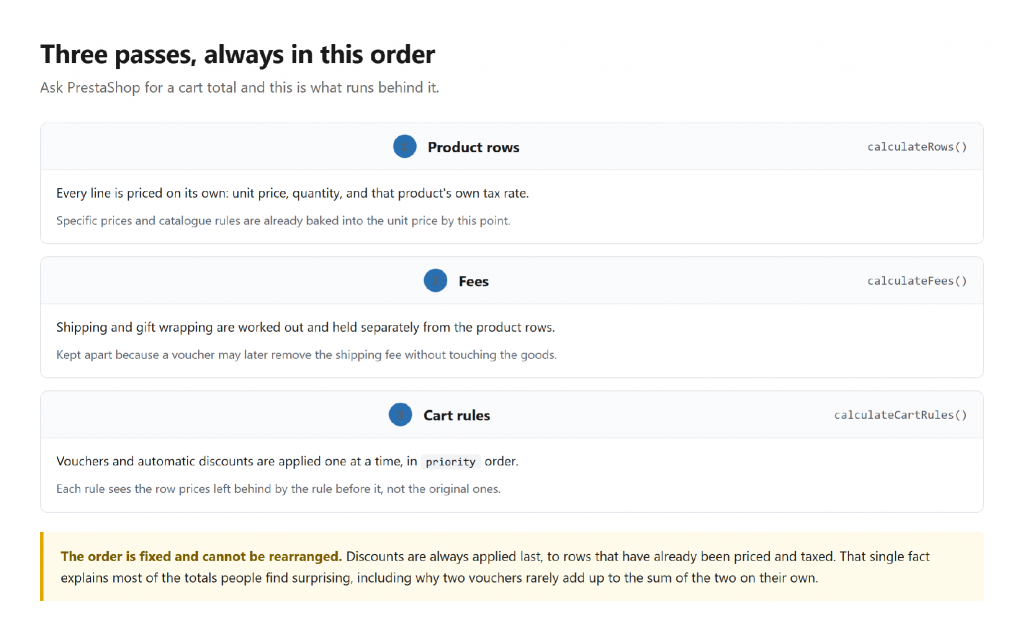
Rows, then fees, then discounts. Rearranging them is not an option.
Rows come first. Every line is priced on its own, with its own quantity and its own tax rate, which is the detail that explains most of what follows. Fees are second: shipping and gift wrapping, worked out and deliberately kept apart from the goods so a voucher can remove one without touching the other. Discounts run last.
That third position matters. It answers most PrestaShop cart calculation puzzles, because a voucher never touches the original prices. It applies to whatever the rows look like then, including voucher codes applied prior to it.
2.0 How does PrestaShop calculate the cart total?
The total is not a number the shop keeps somewhere. It is worked out on demand, and the caller says which parts it wants: products only, discounts only, everything, or everything except shipping.
Worth knowing, because the parts do not always agree the way people expect. Take the free-shipping threshold. It asks for the total without shipping but with discounts already off. If you ask a different question, you will get a different answer. Both are correct.
So a figure on screen can disagree with one in a report. Neither is wrong. They may simply be asking for different parts of the same cart, so check which before assuming anything is broken.
3.0 How do cart rules work in PrestaShop?
PrestaShop cart rules actually consist of both the voucher a customer enters and the automatic discounts that happen without a code. In the backend, both are the same object. That is why they share one screen in the back office and one path through the code.
Rules are applied one at a time, sorted by priority, lowest first. Priority is a plain number you set on the rule. It does more than order them: when two rules cannot be combined, priority decides which one survives.
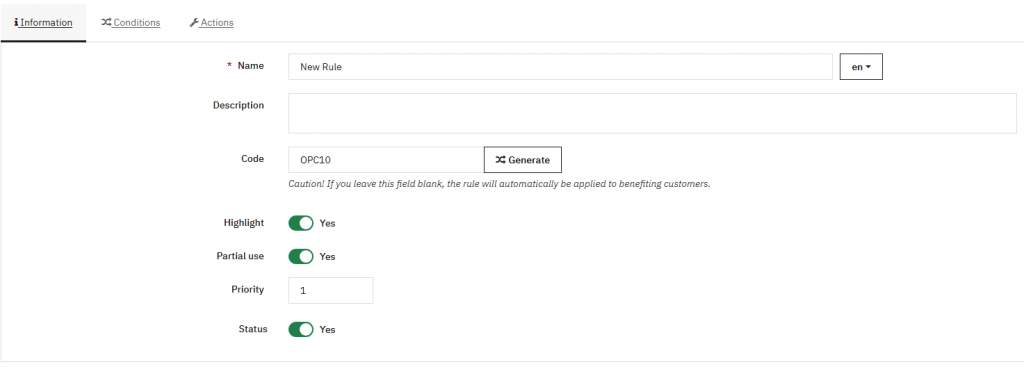
Each rule sees the cart as the previous rule left it. So, two 10% vouchers on a 100 cart do not take off 20. The first takes 10. The second takes 10% of the remaining 90, and the customer saves 19. Standard behaviour, not a rounding artefact.
The conditions themselves are what most merchants already know: date ranges, minimum amount, limits per customer and exclusions by country, group, shipping company or product. PrestaShop’s own cart rules documentation goes into detail for each field, so there is no point in writing them out again.
4.0 How are vouchers applied in PrestaShop?
This is where the PrestaShop voucher system gets interesting. It is also where that 9.87 comes from. Percentage discounts and fixed-amount discounts are handled quite differently, and the difference is not cosmetic.
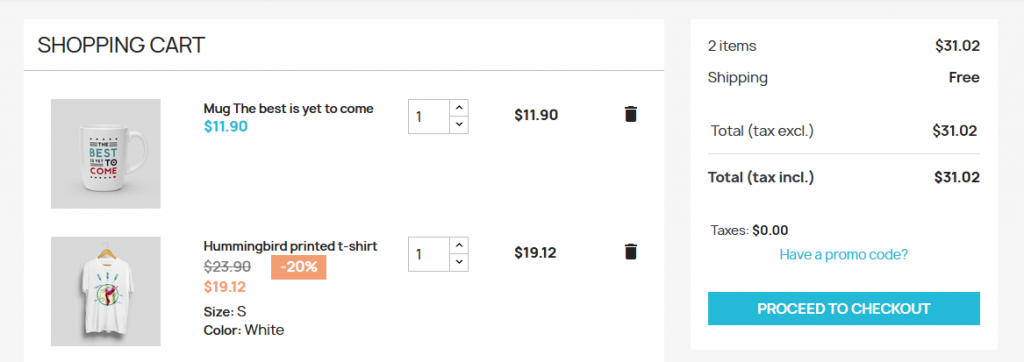
A percentage is simple. Each row loses that percentage of itself, so a 10% voucher takes 10% off the book and 10% off the headphones. Every line keeps its own tax rate without anyone having to think about it.
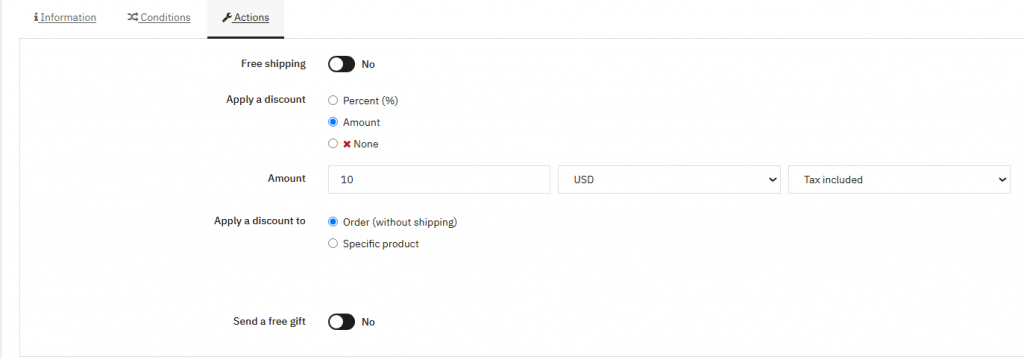
A fixed amount cannot work that way, because the cart first has to decide which lines the money should come off. PrestaShop spreads it proportionally: each row takes a share of the discount matching that row’s share of the cart.
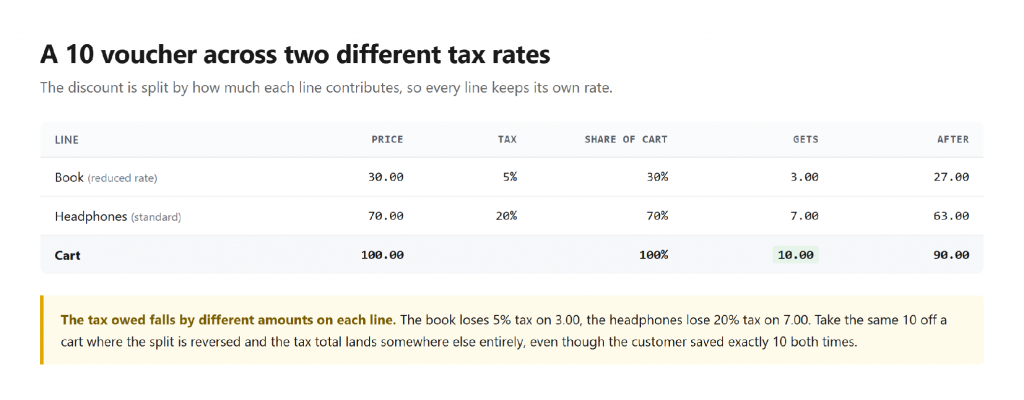
The 10 is split by how much each line contributes, not evenly between the lines.
That is the heart of PrestaShop discount calculation on amount vouchers. It has a consequence worth knowing. Each row keeps its own tax rate, so the tax removed depends on which products the discount lands on. Move the same 10 across a differently weighted cart and the tax total changes, even though the customer saved exactly the same amount.
A second setting matters here too. Is the voucher amount defined tax included or tax excluded? That flag decides which figure the shares are worked out from, so one way the 10 comes off the tax-inclusive prices, and the other way it comes off before tax, and the saving the customer sees is slightly different.
5.0 How does PrestaShop calculate tax at checkout?
PrestaShop tax calculation happens per row. Not on the cart as a whole. Each product carries a tax rule group; that group resolves to a rate for the delivery address, and the row is taxed at that rate.
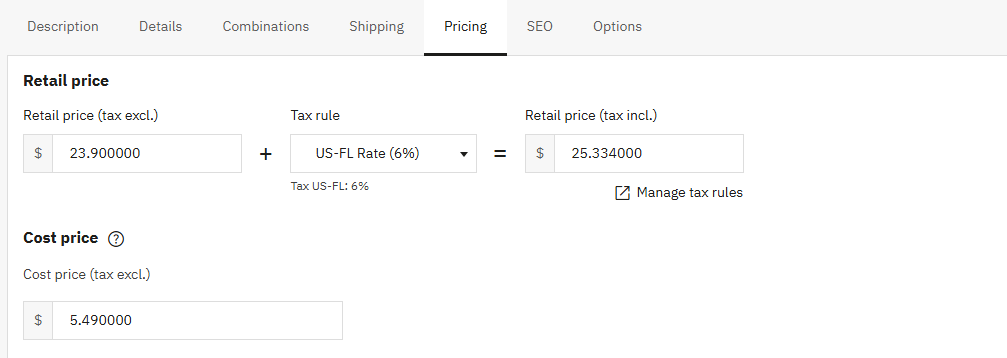
A cart is therefore several small tax sums added together. Nothing computes “the tax on this order” in one go. Which is why the tax breakdown on an invoice can run to several lines even for a short order, and why those lines rarely divide evenly.
Shipping is taxed separately again. It uses the carrier tax rule, not the products, and that catches people out on carts where the goods are zero-rated, but the delivery is not.
6.0 Why does PrestaShop calculate a different cart total
Two totals disagree by a penny? The usual cause is rounding, and PrestaShop gives you three ways to do it.
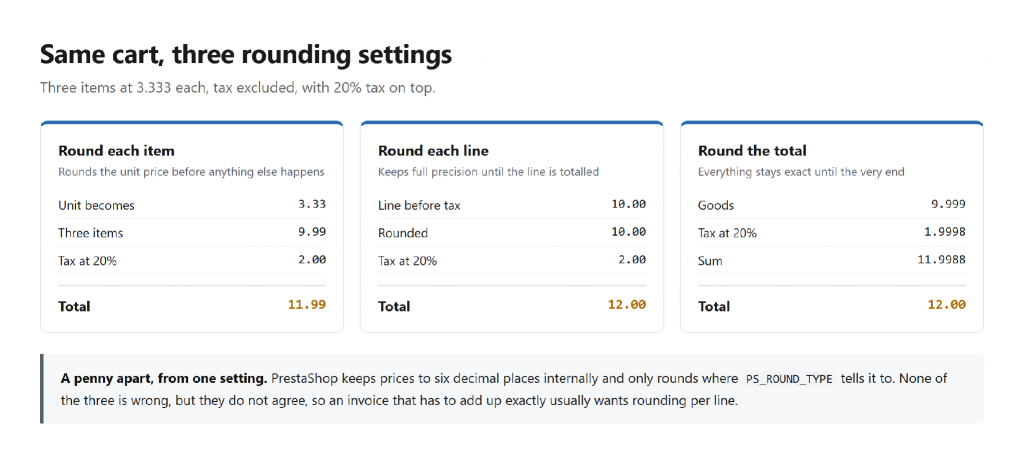
The same three items land on two different totals depending on one setting.
Prices are stored to six decimal places internally. So the only real question is where the rounding happens. Round each item and the unit price is rounded before anything is multiplied. Round each line and full precision survives until the line is totalled. Round the total and nothing is rounded until the very end.
None of the three is wrong. They just do not agree. Rounding per line is the usual advice for stores that need invoices to add up exactly, because it keeps each line internally consistent while still letting the lines sum cleanly. PrestaShop’s own price calculation notes go through the reasoning in more depth.
Before blaming rounding, rule out the simpler explanations. A total that changes when the address changes is tax, not rounding. One that changes when a voucher is added is PrestaShop order calculation working normally. Rounding differences are pennies. Anything larger has another cause.
7.0 How does PrestaShop calculate discounts and taxes together
Putting the two halves together: discounts run after tax has been worked out per row, and a discount reduces both the row and its tax proportionally.
That ordering is what makes the PrestaShop checkout logic predictable. Tax is never recalculated from scratch after a discount. Each row already knows its rate, so removing part of the row removes the matching part of the tax with it.
It answers a common question too. Why is the tax total on an order with vouchers not simply the tax rate applied to the discounted total? Because that’s the sum of what the rows held onto, and those rows began at different percentages initially.
8.0 Building a module that gives a discount
Sooner or later, somebody asks for a discount PrestaShop cannot express on its own. Spend over an amount and get a free product. A loyalty tier. Something tied to a value the shop does not track. The temptation is to work the total out yourself and subtract it somewhere convenient.
Resist that. A discount applied outside the cart-rule system is invisible to everything that reads a cart. The order summary will not know about it, the invoice will not show it, and the tax breakdown will be wrong, because tax is worked out per row and your subtraction never touched the rows.
Create a real CartRule instead. Your module decides when it applies and what it is worth, then hands the discount to PrestaShop as a proper rule. Everything downstream then works without any further help: the summary, the invoice, the per-row tax, the priority ordering against other vouchers.
The module still needs to answer one question that the core cannot: is this rule still supposed to exist? A rule created by your module should stop applying the moment the module is switched off. Nothing in PrestaShop knows that, because, as far as it is concerned, the rule is just another row in the table.
9.0 Overriding checkValidity the safe way
The hook for this is CartRule::checkValidity(). PrestaShop calls it when a voucher is added, and again from autoRemoveFromCart() on carts that already hold rules. That second call is the useful one: return an error from it, and the rule is removed from the cart automatically.
So, the override is short. Check whether the rule belongs to your module, check whether your module is enabled, and if it is not, say so. Everything else goes straight to the parent.
Three things matter in how you write it.
Call the parent for every other case. An override that answers on its own behalf, rather than deferring, quietly discards every check PrestaShop makes: dates, quantity limits, minimum amounts, country and carrier restrictions. Those are easy to forget and expensive to lose.
Only act on your own rules. Identify them by something durable, such as a code prefix your module owns or a record in your own table. An override that fires on every rule in the shop is a shop-wide risk taken on behalf of one module.
Respect the alreadyInCart flag. PrestaShop deliberately skips the active and date checks for rules that are already applied, so a voucher that was valid when the customer used it does not vanish mid-checkout. Your check is different: a disabled module should remove the rule even from a cart that already has it, which is exactly what the auto-remove pass is for.
Match the return shape too. The method returns false when a rule is fine, and a message when it is not. Return the wrong thing, and callers will read your refusal as approval.
10.0 Cleaning up and the override caveat
Disabling the module should also stop the rules being created. The override handles carts in flight; the module itself should stop generating new rules while it is off, and on uninstall it should deactivate or delete the ones it created rather than leaving them behind for the next person to puzzle over.
One caveat worth stating plainly. Only one override of a class can be active at a time, so two modules both overriding CartRule will conflict, and the second to install usually loses. If your discount can be expressed through conditions the core already supports, use those and skip the override entirely. Reach for it only when the rule depends on something PrestaShop genuinely cannot see.
11.0 What changed between PrestaShop 1.7 and 9
Worth knowing if you are following an older guide, or reading forum answers written years ago. Some of it still applies. Some of it does not.
The calculator described above arrived in 1.7, and the three-pass order has not changed since. Comparing the code in 8.2 and 9 directly, the sequence is identical. Rules are still applied in priority order. Amount discounts are still spread proportionally. The three rounding modes still behave as they always did.
What has moved is the surface. PrestaShop 9 continues migrating back-office pages to Symfony, so screens have been rebuilt and some fields sit somewhere other than where they used to. Menu paths for discounts are unchanged. But a screenshot from a 1.7 tutorial will not match what is on your screen: advice about the maths still applies, advice about where to click may not.
12.0 Working out why a total looks wrong
Here is a short order to check things in. Each step rules out the ones after it, which saves chasing a rounding setting when the answer is an automatic discount nobody remembered.
Start with the cart rules on the order. Which ones applied, and in what priority order? A rule somebody forgot was automatic is the single most common answer to the whole question.
Then check whether the voucher is a percentage or an amount. If it is an amount, check whether it is set tax included or tax excluded. That flag alone accounts for a lot of “the discount is slightly off” reports.
Next, look at tax rates on the individual products rather than the cart total. Mixed rates in one cart are perfectly normal. They just make the arithmetic look stranger than it is.
Only then consider rounding. And only if the gap is a penny or two, since a bigger difference means something else is going on. Check the rounding mode in your settings against how the invoice is expected to add up.
13.0 The short version
The PrestaShop checkout process is more predictable than it looks. Rows are priced and taxed first. Fees come second, discounts last, and every discount works on what the previous one left behind.
Fixed-amount vouchers are spread across lines by weight, so each line keeps its own tax rate. Percentages are simpler and hit each row directly. And when two totals differ by a penny, it is usually the rounding setting rather than a bug.
Thanks for reading.
If you have questions or need assistance with your website performance or migration, our experts are here to help. Contact the Knowband team at [email protected] today for reliable eCommerce plugins tailored to your eCommerce needs.

